Licensing Guide
Portweaver licenses are assigned through your Portweaver account, and installed to a server offline using a Portweaver license key file.
Each license can be assigned to a single Portweaver server at a time. The expiry date and managed-device limit can be configured when purchasing a license. These control the amount of devices your server can manage for the duration of the license.
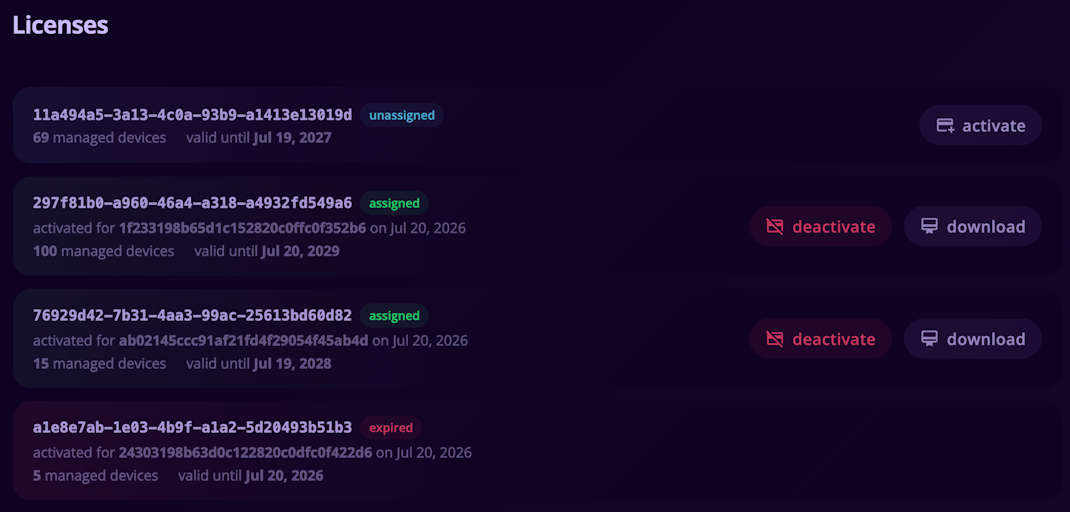
License Status
Section titled “License Status”The licenses page in your Portweaver account shows one of three states for each license:
unassigned
- The license is available for activation on a Portweaver server
assigned
- The license is currently bound to a Portweaver server
- The assigned license can be downloaded again for that same server
expired
- The license is no longer valid
- It cannot be activated, downloaded, or released with a deactivation key
Before Activating
Section titled “Before Activating”You will need:
- A Portweaver account
- An active, unassigned license associated with that account
- Access to the Portweaver server you want to license
- Access to a web browser that can sign in to your Portweaver account
The browser does not need to be running on the Portweaver server. You can copy the device ID to another computer, download the license there, and then transfer the license key file back to the Portweaver server.
Activating Portweaver
Section titled “Activating Portweaver”Start on the server
Section titled “Start on the server”- Open the web interface and sign in as an administrator
- Open the user menu in the top-right corner
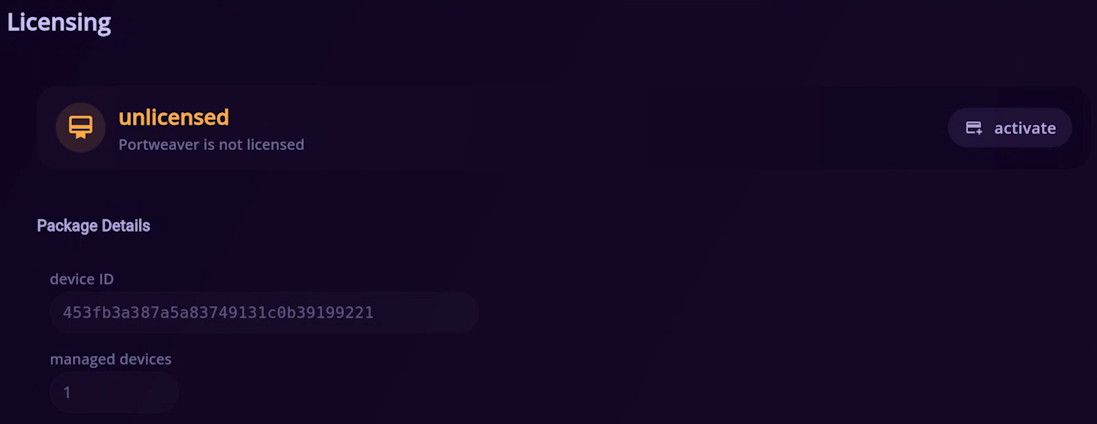
- Navigate to settings > licensing
The page will show the current licensing state and the server’s device ID:
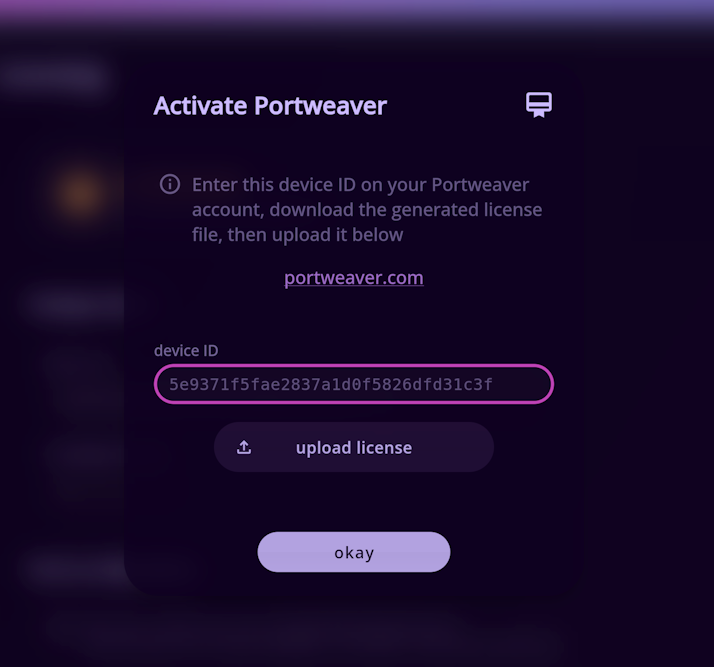
- Click activate
- Copy the device ID shown in the activation window
Issue key from account
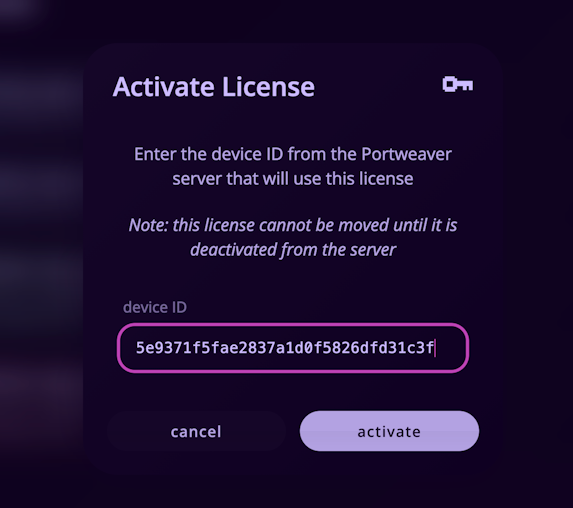
Section titled “Issue key from account”- Sign in with the account which holds the license at portweaver.com
- Open account > licenses and find an active unassigned license
- Click activate and paste the device ID from the previous step 5
- Click activate again to finalize and download
portweaver-license-*****.key
Finalize server activation
Section titled “Finalize server activation”Return to the Activate Portweaver window on the server:
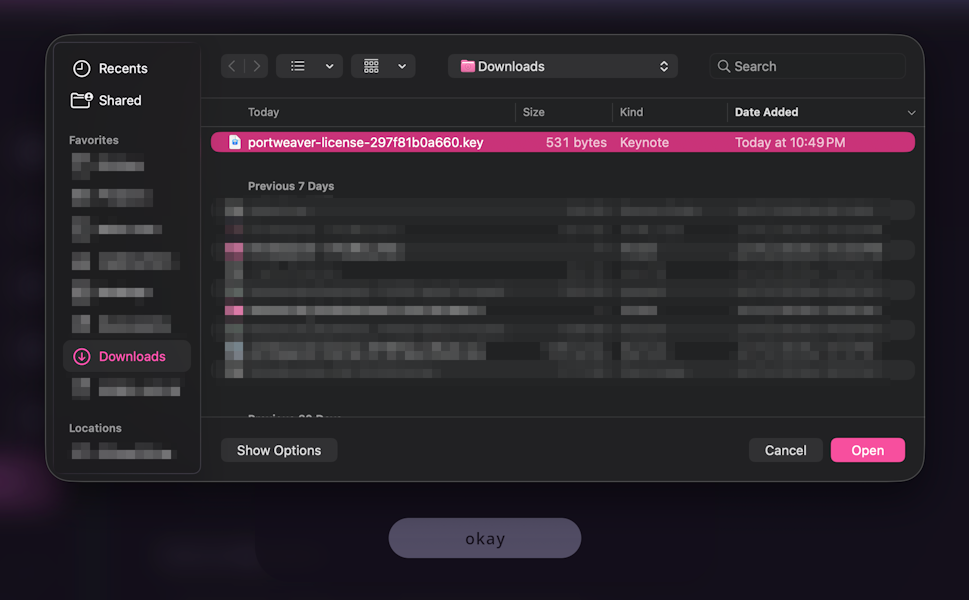
- Click upload license
- Select the downloaded
portweaver-license-*****.keyfile from your system - Wait for Portweaver to verify and install the license
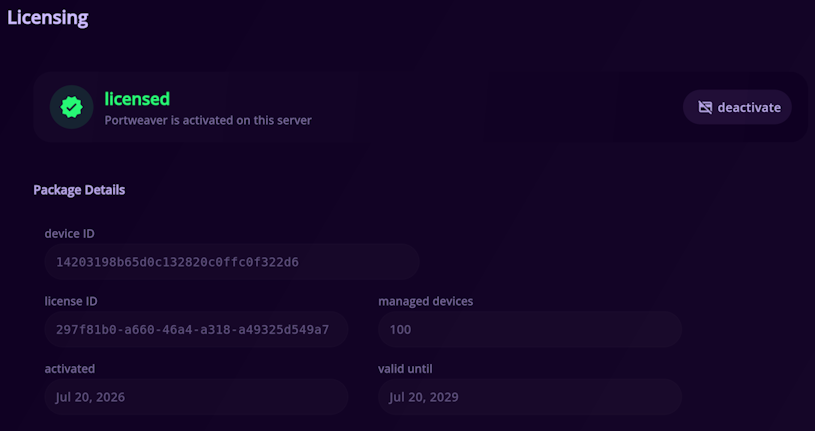
After successful activation:
- The licensing state will reflect licensed
- The license ID, device limit, and expiration will be visible
Deactivating Portweaver
Section titled “Deactivating Portweaver”Deactivating the server
Section titled “Deactivating the server”On the licensed Portweaver server:
- Open settings > licensing
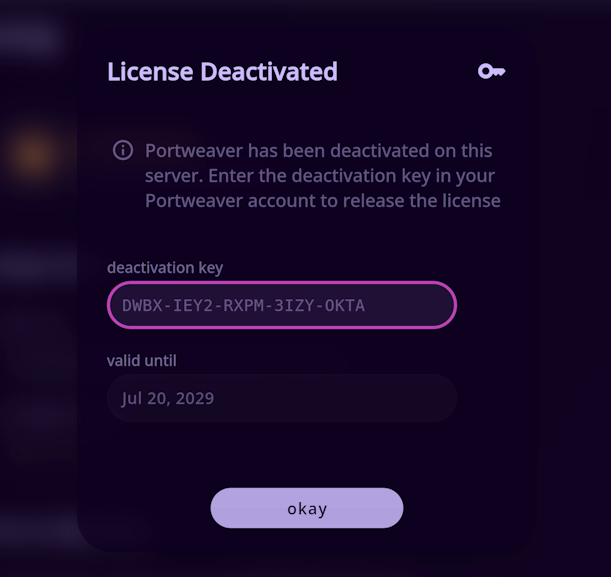
- Click deactivate, review, and click deactivate again to confirm
- Copy the deactivation key for the next step
Recover a previous deactivation key
Section titled “Recover a previous deactivation key”If the confirmation window was closed before the key was copied or was lost:
- Open settings > licensing
- Scroll to Previous Deactivation and copy the stored deactivation key
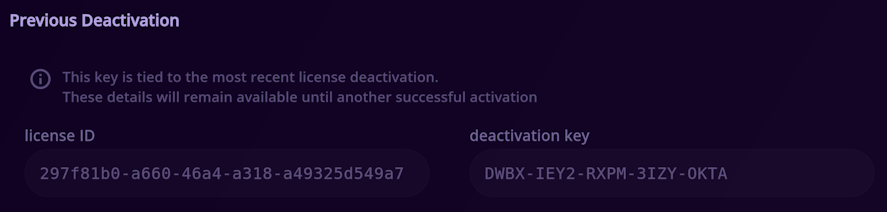
The previous deactivation details remain available until another license is successfully activated.
Release license from account
Section titled “Release license from account”- Sign in with the account that holds the license at portweaver.com
- Open account > licenses and find the active assigned license
- Click deactivate and paste the deactivation key from the server
- Click deactivate again to confirm

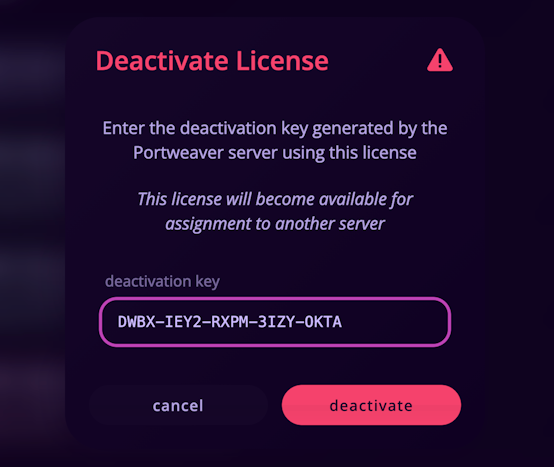
After the key is accepted:
- The license changes from assigned to unassigned
- The previous server assignment is removed
- The license can be re-activated on another Portweaver server
- The old license key file can no longer be used and can be safely deleted
Moving a License to Another Server
Section titled “Moving a License to Another Server”To move a license safely:
- Deactivate Portweaver on the original server
- Copy the generated deactivation key
- Release the license through account > licenses
- Open settings > licensing on the new server
- Copy the new server’s device ID
- Activate the now-unassigned license using the same activation procedure
The new server has a different device ID and will require the newly issued license key file.
Expired Licenses
Section titled “Expired Licenses”When an installed license expires:
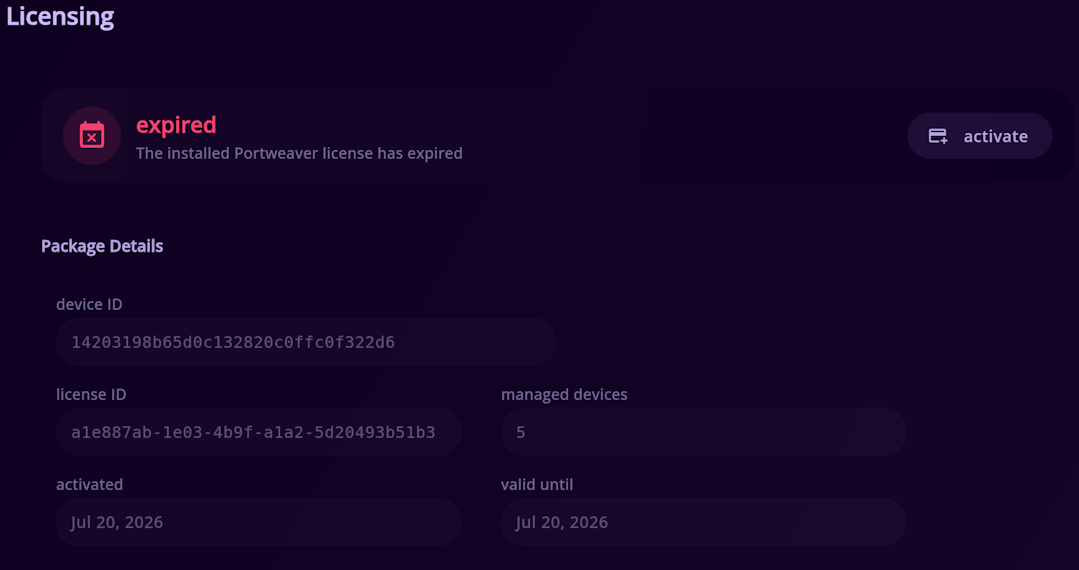
- Portweaver changes the licensing state to expired
- Portweaver returns to its current free or unlicensed device limit
- The expired license remains visible for reference
- The website lists the license as expired

Troubleshooting
Section titled “Troubleshooting”The website rejects the device ID
Section titled “The website rejects the device ID”Confirm that:
- The ID was correctly copied from settings > licensing
- No characters are missing/invalid
- The ID belongs to the server you are activating
The license file does not match this server
Section titled “The license file does not match this server”The downloaded key was generated for a different device ID.
Return to your Portweaver account and verify that the assigned device ID matches the ID currently displayed by the server.
If the server was deactivated, release the old assignment and generate a new license for its current device ID.
The license signature is invalid
Section titled “The license signature is invalid”The license file may have been altered or corrupted.
- Delete the invalid copy
- Return to account > licenses
- Click download beside the assigned license
- Upload the newly downloaded file
The website still shows the license as assigned
Section titled “The website still shows the license as assigned”Local deactivation does not automatically contact the website.
Copy the deactivation key from the License Deactivated window or the Previous Deactivation section, then submit it through account > licenses.
The deactivation key is rejected
Section titled “The deactivation key is rejected”Confirm that:
- The key came from the server previously using that license
- The key belongs to the license currently shown as assigned
- The key is from the most recent assignment
- The license has not expired
- Every character was copied correctly
The original server is no longer available
Section titled “The original server is no longer available”Because Portweaver licensing works offline, the website cannot remotely remove a license from an unavailable server.
Please contact Portweaver support to request an administrative release of the assignment. Administrative release should only be used when the original server cannot complete normal deactivation.