Migration & Recovery
Portweaver stores all data encrypted at rest on disk. These files are volatile, meaning manually copying or moving them will break the integrity of the encryption keys. Both processes use this same backup and restore system:
- Migration: Moving Portweaver to a new system or platform
- Recovery: Restoring data after failure or data loss
To safely migrate or recover your data; including devices, users, and configuration, you must use this process. Licensing must be transferred separately during a migration.
Accessing Backup Settings
Section titled “Accessing Backup Settings”Navigate to:
/settings/generalYou must be logged in as a user with the admin role.
Cross-Platform Support
Section titled “Cross-Platform Support”Backups are fully portable across platforms:
- Windows → Linux
- Linux → Windows
As long as the Portweaver version is compatible, your data can be restored anywhere.
Creating a Backup
Section titled “Creating a Backup”- Open Settings → General
- Locate the backup section
- Click the backup button
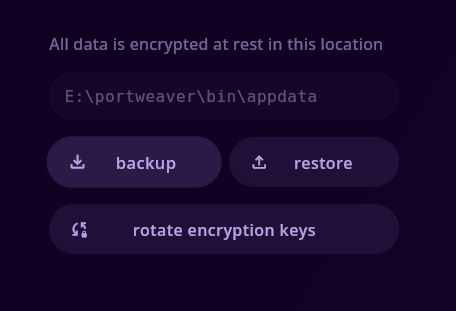
After creating a backup:
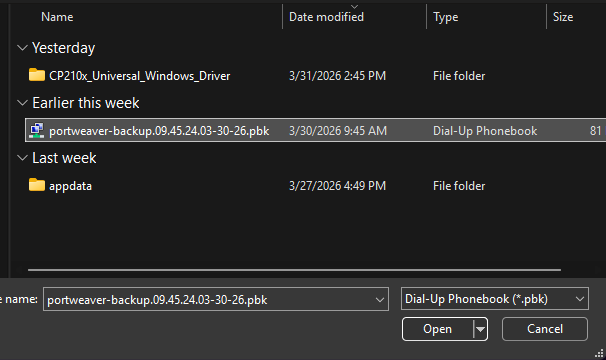
- A
.pbkfile is generated - It is saved locally
- It is also stored on the server at:
/appdata/backups/applicationBackup Configuration
Section titled “Backup Configuration”After clicking backup, you may see additional options depending on your setup.
Encryption Key
Section titled “Encryption Key”When creating a backup, you will be prompted to provide an encryption key.
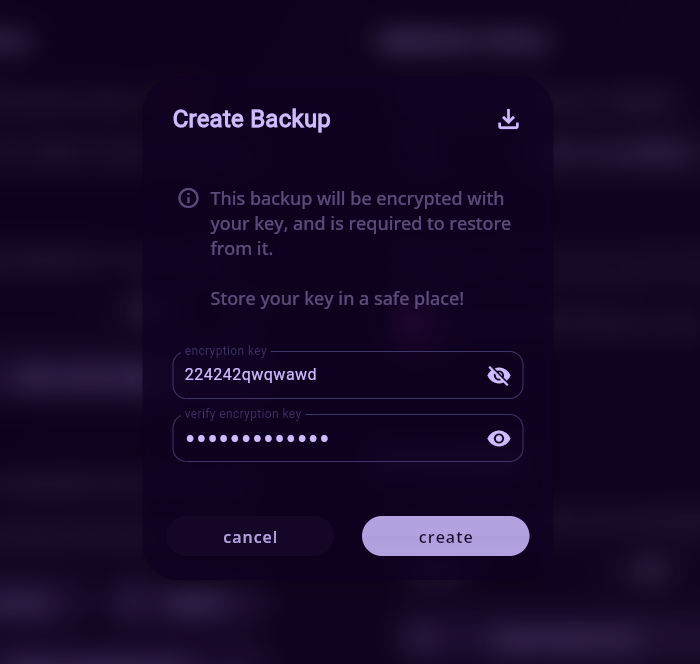
- Choose a strong key
- Store it securely (password manager recommended)
Restoring a Backup
Section titled “Restoring a Backup”To restore your data:
- Go to Settings → General
- Click the restore button
- Select your
.pbkfile
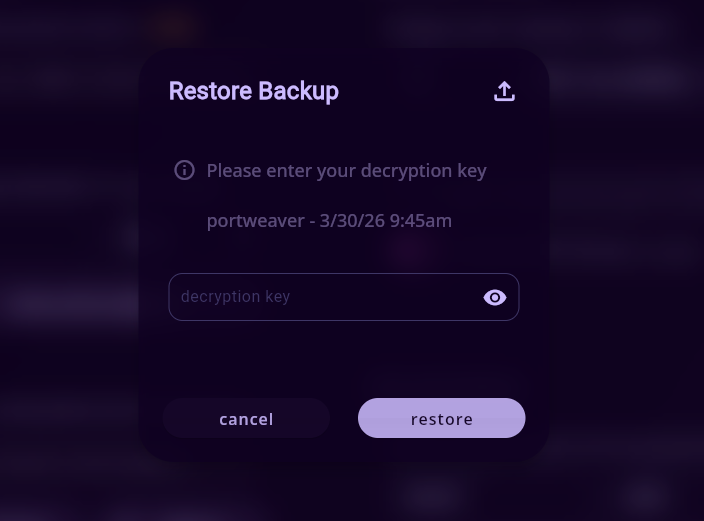
Decryption Step
Section titled “Decryption Step”After selecting a backup file, you will be prompted to enter your encryption key.
After a Successful Restore
Section titled “After a Successful Restore”Once the restore completes:
- The entire application state is reverted to the backup
- All active sessions are invalidated
- You will need to sign in again
- Devices, users, and settings return to their saved state
Summary
Section titled “Summary”- Always use the built-in backup system
- Never move encrypted data files manually
- Keep your encryption key safe
- Store backups in multiple locations
Portweaver’s backup system is designed to make recovery and migration reliable across any environment.