User Management
User management in Portweaver is handled through the admin settings panel.
Accessing User Settings
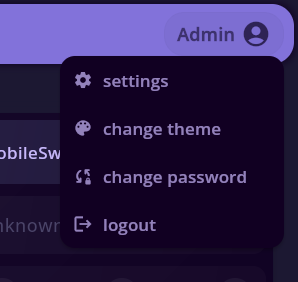
Section titled “Accessing User Settings”- Open the user menu in the top right as an admin-role user account
- Click “settings”
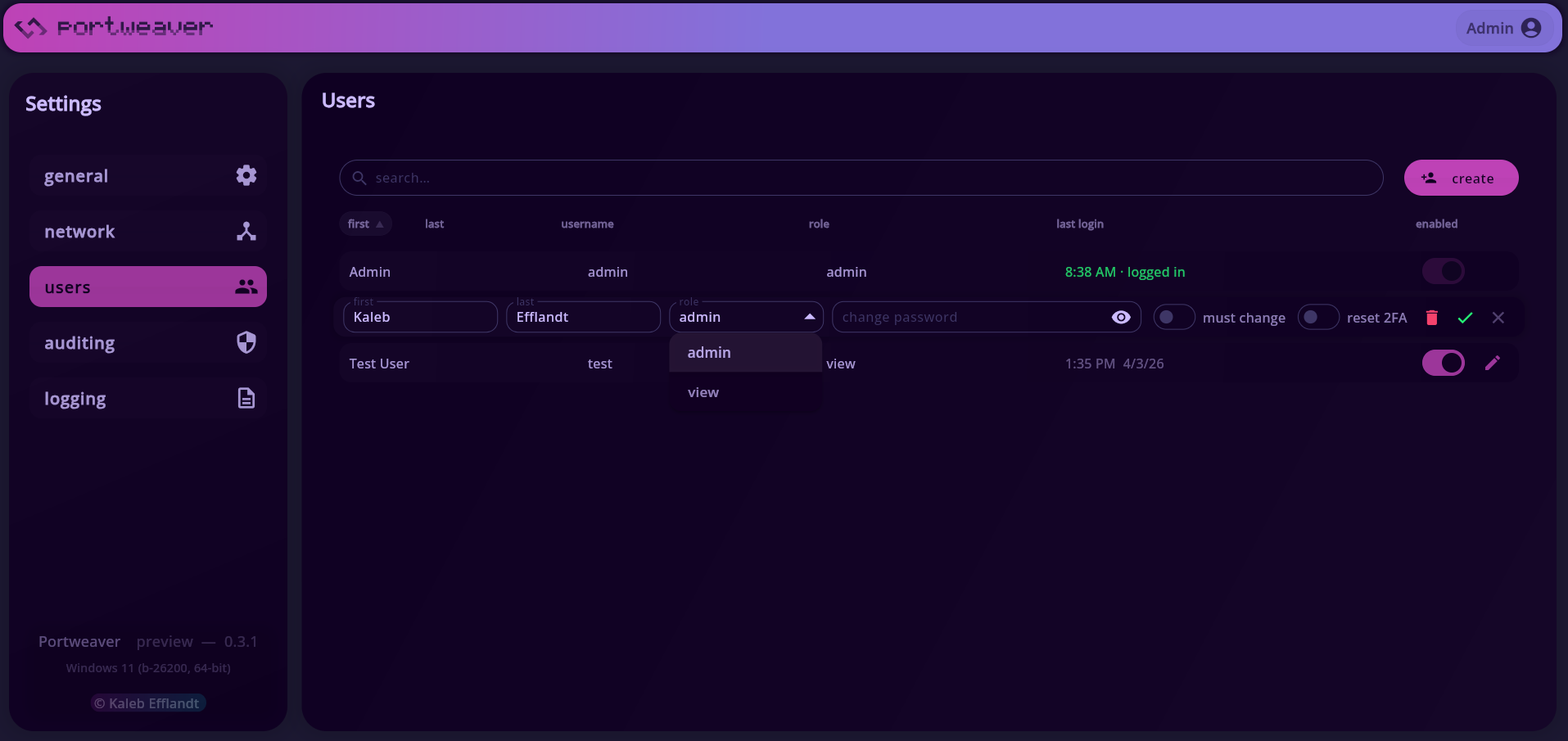
- Navigate to the users tab
Creating a User
Section titled “Creating a User”To create a new user:
- Click “create”
- Fill out the required fields:
- First name
- Last name
- Username
- Password
- Role
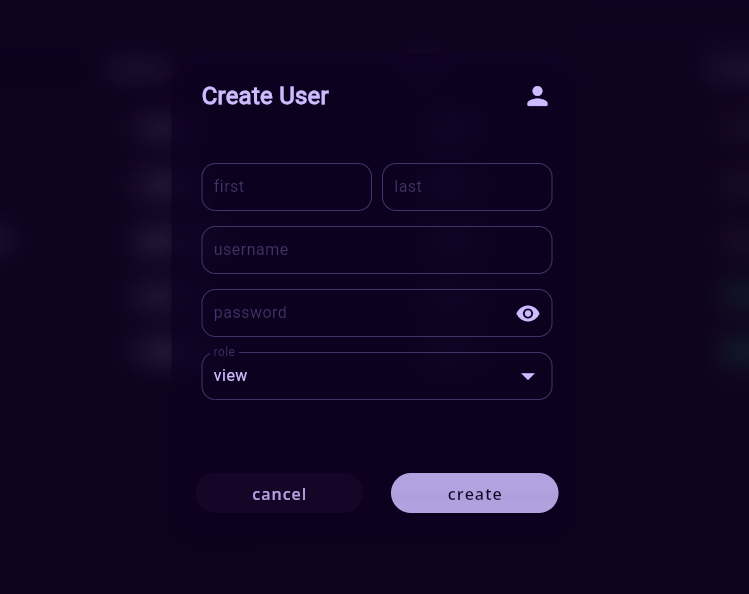
- Submit the form
Editing Users
Section titled “Editing Users”Users can be modified directly from the list by clicking the pencil icon:
- Update name and role
- Change password
- Enable or disable account
- Reset 2FA
- Delete user
Changes are applied by clicking the green checkmark.
User Roles
Section titled “User Roles”Portweaver uses role-based access control.
There are currently two primary roles:
-
admin
- Full access to all settings and system features
- Can manage users, devices, and server configuration
-
view
- Read-only access to all devices
- Cannot modify configurations or perform administrative actions
Auditing
Section titled “Auditing”All user actions are logged and can be reviewed in the auditing tab.
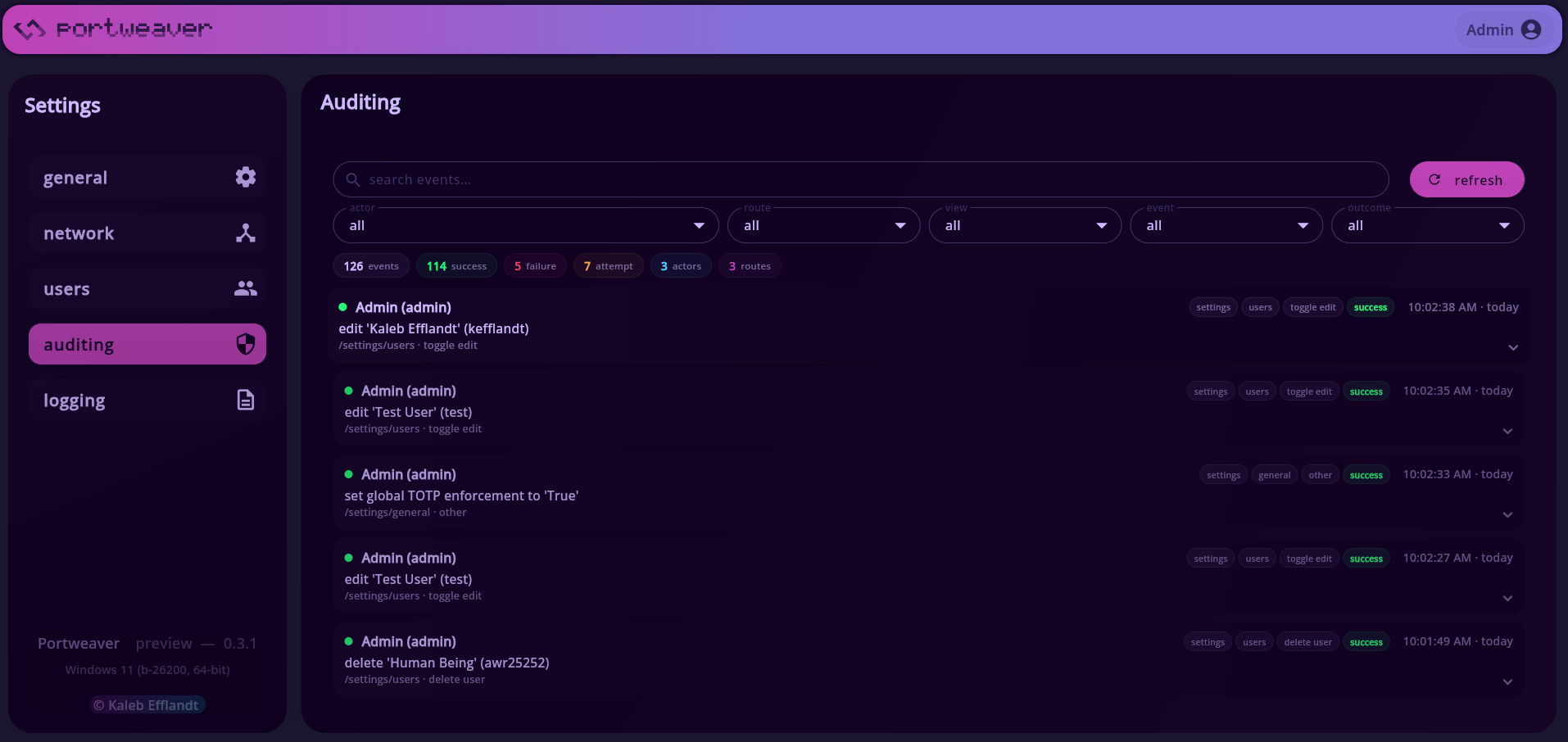
The audit manager provides:
-
Access to history of system activity (up to 100 days of logs)
-
Filtering by:
- User
- Route
- Event type
- Outcome
-
Visibility into:
- Authentication events
- Configuration changes
- User actions
This allows full traceability across the system.
Security Settings
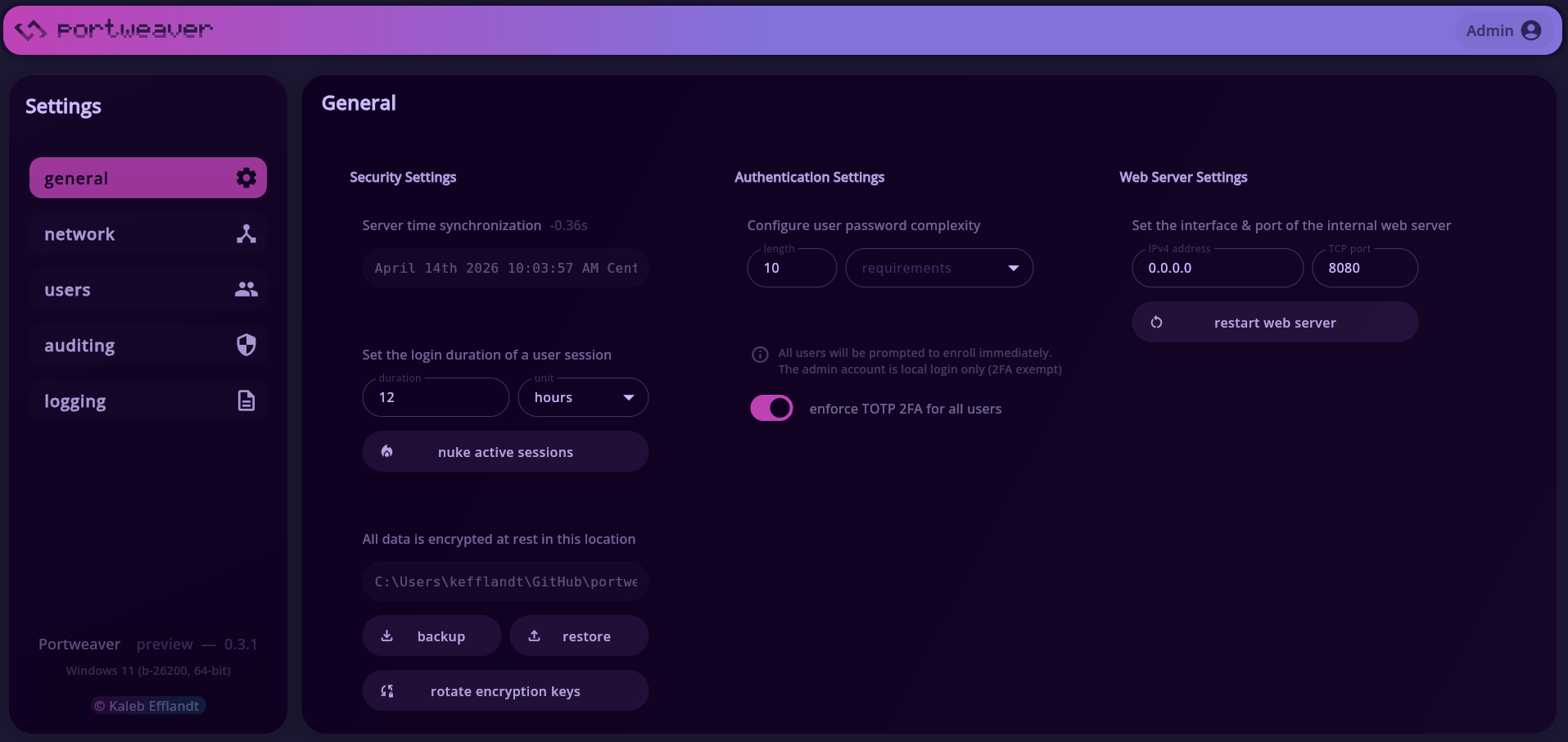
Section titled “Security Settings”Additional security controls are available under /settings/general
Password Requirements
Section titled “Password Requirements”Configure password complexity requirements:
- Minimum length
- Character requirements
All users must comply with these rules.
Multi-Factor Authentication (TOTP)
Section titled “Multi-Factor Authentication (TOTP)”Portweaver supports Time-based One-Time Password (TOTP) authentication.
To enforce globally:
- Enable:
enforce TOTP 2FA for all usersWhen enabled:
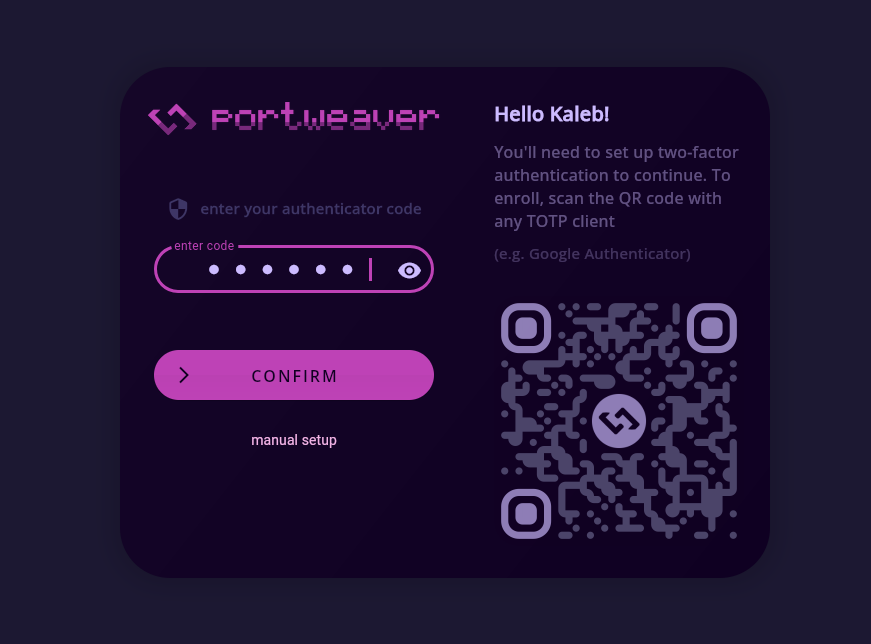
- Users are required to enroll on next login, or immediately if they have an active session
- Access is restricted with a
verifysession until setup is complete
This is what a user will see when required to enroll:
Personalization
Section titled “Personalization”Every user can change the theme for their Portweaver experience from their user menu. There are several color palettes to choose from:

Summary
Section titled “Summary”- Users are managed through the settings panel
- Roles define access level
- All actions are logged in the audit manager
- TOTP can be required for all users
This provides a centralized and secure way to manage access and system activity.