Install & Update
Portweaver is distributed as a standalone archive for each supported operating system. Downloads are provided through your Portweaver account.
Download Portweaver
Section titled “Download Portweaver”- Sign in at portweaver.com
- Open account > downloads
- Confirm the selected operating system
- Click download
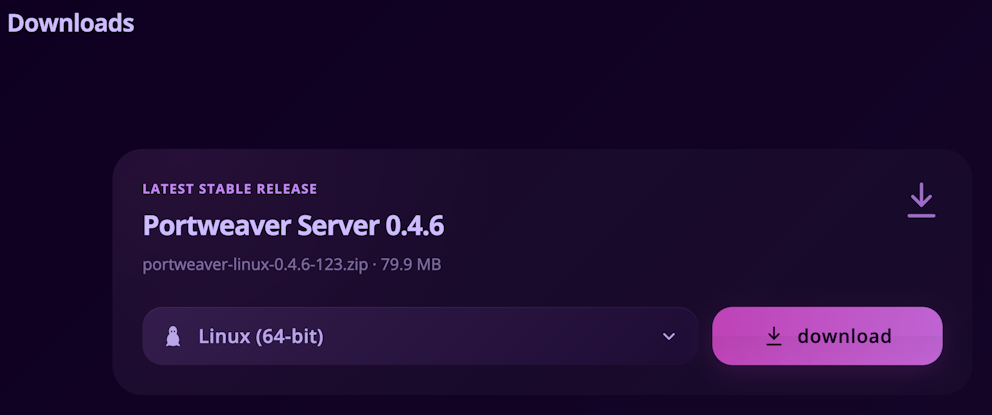
The downloads page automatically selects the operating system used by your browser. You can open the platform menu and select another available build.
Choose the Installation Location
Section titled “Choose the Installation Location”Extract Portweaver into its permanent installation directory before launching it for the first time.
Recommended locations:
Windows
C:\Portweaver\└── portweaver-server.exeLinux
~/portweaver/└── portweaver-serverPortweaver creates its appdata directory beside the executable after first launch.
Windows Installation
Section titled “Windows Installation”- Extract the downloaded Windows archive
- Move
portweaver-server.exeinto the permanent installation directory - Start
portweaver-server.exe
Continue with Windows Setup for reverse proxy, firewall, and hosting configuration.
Linux Installation
Section titled “Linux Installation”- Extract the downloaded Linux archive
- Move
portweaver-serverinto the permanent installation directory - Make the binary executable:
chmod +x portweaver-server- Start Portweaver:
./portweaver-serverContinue with Linux Setup for dependencies, reverse proxy, firewall, and service configuration.
First Access
Section titled “First Access”After Portweaver starts, complete Post-Install Setup.
The default installation listens on:
http://localhost:8080The first login must be completed locally using the default admin account.
Automatic Updates
Section titled “Automatic Updates”Automatic updates are an easy way to keep Portweaver up-to-date from within the app. Updates won’t execute automatically, however, the whole process is automated. To use this feature, you’ll need:
- An active Portweaver license
- An activated local Portweaver installation
- Connectivity to
portweaver.com
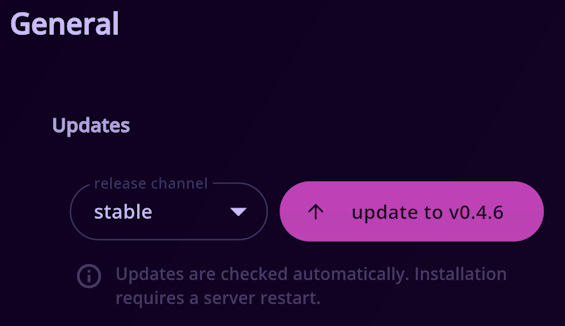
Portweaver checks for updates automatically. To view the current status:
- Open the user menu
- Open settings > general and scroll down to “Updates”
Release Channels
Section titled “Release Channels”stable
- Recommended for production
- Receives normal Portweaver releases
beta
- Receives development builds
- Intended for testing before a stable release
Changing the release channel will immediately check for a newer build.
Install an Automatic Update
Section titled “Install an Automatic Update”When an update is available:
- Click the update button
- Review the version & restart notice
- Click install on the popup
Portweaver will:
- Download the selected release
- Verify its size and SHA-256 checksum
- Replace the current executable
- Restart automatically
The web interface will disconnect briefly while the server restarts.

Manual or Offline Updates
Section titled “Manual or Offline Updates”Use a manual update when:
- The Portweaver server cannot reach
portweaver.com - The installation is not licensed
- The server is managed by an external service
- The automatic update fails
To update manually:
- Create a backup
- Download the latest stable archive from account > downloads
- Transfer the archive to the Portweaver server
- Stop Portweaver
- Extract the new executable
- Replace the existing executable in place
- On Linux, run:
chmod +x portweaver-server- Start Portweaver again